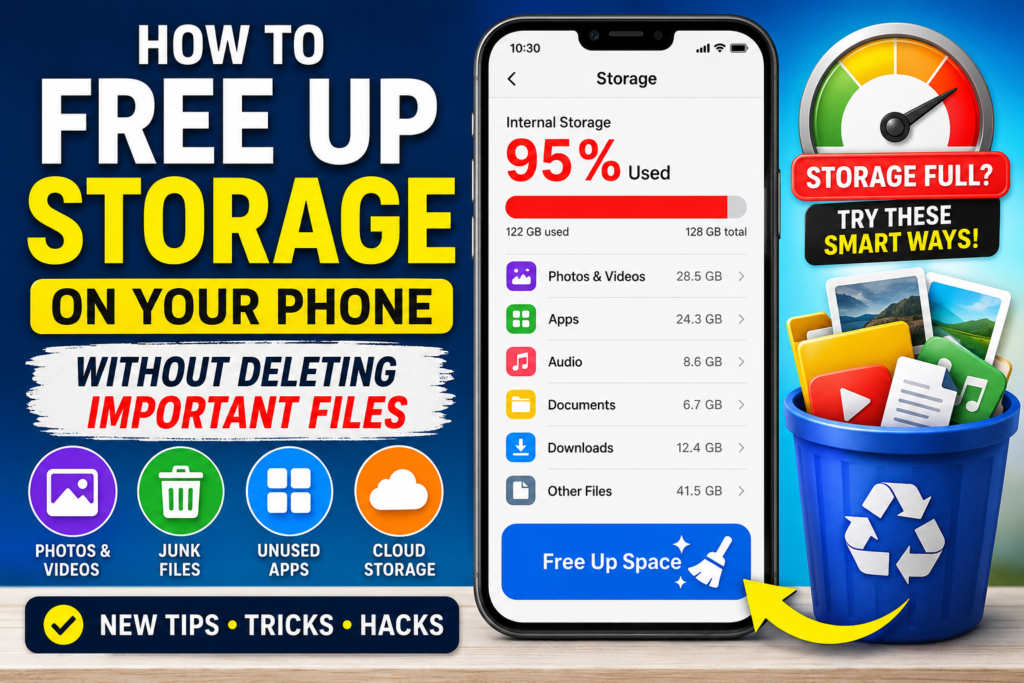
How to Free Up Storage on Your Phone Without Deleting Important Files
Is your phone constantly showing “Storage Almost Full”? Before deleting your photos, videos or important documents, learn how to find what is actually using your storage and safely free up space on Android and iPhone.
Quick Answer
The safest way to free up phone storage is to first identify the biggest storage categories instead of randomly deleting files. Start with large videos, duplicate files, old downloads, offline media, unused apps and temporary files. If your photos are safely backed up, you can also remove local copies from your device.
Never assume that a file is safely backed up just because you can see it inside a cloud-storage app. Confirm that important photos, videos and documents are actually backed up or copied somewhere you can access before deleting the local copy.
Why Does Phone Storage Get Full So Quickly?
Phone storage does not fill up only because of photos. Over time, your device can accumulate videos, screenshots, downloaded files, offline movies, music, documents, app data, duplicate media, cached files and files received through messaging apps.
The problem is that some of these files are easy to forget. A single long 4K video can take more space than hundreds of normal photos, while an old downloads folder can quietly contain files you no longer need.
The smartest cleanup strategy is therefore not: “Delete everything.”
It is: “Find the biggest and least useful files first.”
Check What Is Actually Using Your Storage
Before deleting anything, check your phone’s storage dashboard. This prevents you from wasting time deleting small files when one large category is responsible for most of the storage usage.
On Android
- Open Settings.
- Open Storage.
- Review categories such as apps, images, videos, audio, documents and system data.
Android’s exact menus can vary between Samsung, Xiaomi, OnePlus, Motorola, Pixel and other phones.
On iPhone
- Open Settings.
- Tap General.
- Tap iPhone Storage.
- Review the apps and categories consuming the most space.
Do not start deleting random photos. First find the category consuming the most space.
How to Free Up Storage on Android
Android provides several built-in ways to identify and remove unnecessary files. Google also provides Files by Google, which can suggest junk files, duplicate files, large files, screenshots and unused apps for cleanup.
Use Files by Google
- Open Files by Google.
- Tap Clean.
- Review the cleanup suggestions.
- Open each suggestion instead of blindly deleting everything.
- Delete only files you are confident you no longer need.
Files by Google can help identify junk files, duplicate files, recommended files, screenshots and unused apps.
Some cleanup actions permanently delete files. Always preview what is selected before confirming.
How to Free Up Storage on iPhone Without Losing Important Data
iPhone users can get a detailed breakdown of storage usage directly from the iPhone Storage screen.
Open iPhone Storage
- Open Settings.
- Tap General.
- Tap iPhone Storage.
Apple may show recommendations for saving storage, and you can see how much space individual apps are using.
Use Offload Unused Apps
Offloading an app is different from deleting it. iPhone can remove the app itself while keeping its documents and data, allowing you to reinstall the app later if needed.
If an app is large but you rarely use it, check whether Offload App is available before choosing Delete App.
Free Up Space From Photos and Videos Without Losing Memories
Photos and especially videos are often among the biggest storage consumers on a smartphone.
Start with videos
Instead of manually checking thousands of photos, start with large videos. Look for:
- Long screen recordings.
- 4K videos you no longer need locally.
- Repeated downloaded videos.
- Old social-media downloads.
- Large WhatsApp or messaging videos.
Google Photos method
If your photos and videos are properly backed up with Google Photos, Google provides options to remove backed-up copies from the device to recover local storage.
Always confirm that the backup is complete before removing local copies.
Do not delete photos from your phone simply because they appear inside a cloud app. First confirm the backup status and understand whether you are deleting the local copy or the cloud copy.
Clean WhatsApp and Messaging App Storage
Messaging apps can quietly become one of the biggest sources of storage usage because images, videos, documents and voice messages can accumulate over months or years.
What to look for
- Large videos.
- Repeated forwarded videos.
- Old memes.
- Duplicate images.
- Documents you downloaded once and never opened again.
- Old group-media folders.
Clean the biggest conversations first
Instead of checking every chat manually, start with the conversations or groups that contain lots of photos and videos. Removing a few large files can recover more space than deleting hundreds of tiny images.
Make sure the photos, videos or documents are not important to you. If they are important, save them somewhere else first.
Clean the Downloads Folder
The Downloads folder is one of the easiest places to find files that are no longer needed.
Look for:
- Old PDFs.
- Installation files.
- ZIP files.
- Duplicate documents.
- Images downloaded for one-time use.
- Old videos.
- Files shared through browsers or messaging apps.
Sort by size
If your file manager allows sorting by size, use it. Finding the biggest files first is usually much faster than scrolling through hundreds of files by name.
Remove or Archive Apps You No Longer Use
Apps can consume storage in two different ways: the application itself and the data it creates.
Ask yourself:
- Have I used this app in the last few months?
- Can I reinstall it later if I need it?
- Does it contain important offline data?
- Is the app taking hundreds of megabytes or several gigabytes?
On supported Android devices, unused apps can be automatically archived to free storage while keeping personal app data.
On iPhone, Offload Unused Apps can remove the app while keeping its documents and data.
Cache vs App Data: What Is Safe to Delete?
This is one of the most misunderstood parts of phone storage cleanup.
What is cache?
Cache is usually temporary data that an app stores to make certain operations faster.
Clearing cache can free some storage, but the app may need to rebuild some temporary files the next time you use it.
What is app data or app storage?
App data can include account information, downloaded content, settings, databases and other information created by the app.
On Android, Clear cache and Clear storage/data are not the same thing. Clearing storage/data can permanently remove the app’s stored information and may sign you out or reset the app.
When you are unsure, use the app’s own cleanup tools first.
Find the Largest Files Before Deleting Small Ones
This is one of the most effective storage-cleanup strategies.
Imagine your phone has 2 GB of free space and you need 8 GB. Deleting hundreds of small screenshots may barely help. Removing one large offline video collection could solve the problem much faster.
Look for:
- Large videos.
- Offline movies.
- Downloaded music.
- Large ZIP archives.
- Old backups.
- Large messaging media.
- Screen recordings.
Remove Duplicate Photos and Files Carefully
Duplicate files are another easy source of wasted storage.
However, do not manually delete images just because they look similar. Two photos can appear almost identical while having different resolutions, edits or important information.
Safer approach
- Use a trusted duplicate-file detection tool.
- Preview the suggested duplicates.
- Keep the highest-quality copy.
- Check that the other copies are truly unnecessary.
- Delete only after verification.
Do not blindly press “Select All” in a cleanup application. Always preview what will be removed.
Use Cloud Storage to Reduce Phone Storage Safely
Cloud storage can help you keep important files available without keeping every local copy on your phone.
Examples
- Google Photos for backed-up photos and videos.
- Google Drive for documents.
- iCloud Photos for Apple devices.
- Other trusted cloud services for selected files.
The key is understanding the difference between: “backed up”, “synced” and “stored locally.”
Before deleting a local file, make sure you know where the remaining copy exists and how you would recover it if necessary.
Move Large Files to a Computer or SD Card
If you do not want to delete important files, moving them somewhere else can be better than removing them permanently.
Good candidates for transfer
- Old family videos.
- Large project folders.
- Old documents.
- Camera recordings.
- Archived work files.
Android devices that support SD cards can also allow compatible files to be moved or copied to the card.
After transferring important files to a computer or external storage, open several of them and confirm they work before deleting the original copies from your phone.
15 Smart Storage Hacks Most People Forget
Delete screen recordings first
Screen recordings can become surprisingly large, especially when recorded at high resolution or frame rate.
Check offline downloads
Streaming apps can store downloaded movies, shows, music or podcasts for offline playback. Remove downloads you have already watched or listened to.
Check old ZIP and RAR files
Archives can contain many files while appearing as a single item. If you no longer need the archive, it can be a quick storage win.
Clean memes and forwarded media
Messaging groups can create large collections of memes, forwarded videos and repeated images.
Review screenshots by month
Screenshots are useful temporarily but often become permanent clutter. Keep important ones and remove the rest.
Delete old installation files
If you downloaded an installation package and already installed the app, the original package may no longer be necessary.
Check the largest apps, not just the number of apps
Five small apps may use less storage than one large game or editing application.
Check downloaded maps
Offline maps can take meaningful space. Remove map areas you no longer need offline.
Review music downloads
Downloaded playlists can consume much more storage than expected. Keep only the music you actually need offline.
Use Wi-Fi to replace unnecessary offline copies
If you have reliable internet access, you may not need to keep every large video or playlist downloaded permanently.
Check your browser’s downloads
Files downloaded from your browser can remain forgotten for months.
Use “sort by size” whenever available
Size-based sorting helps you find high-impact deletions quickly.
Archive old projects instead of deleting them
Move finished projects to a computer or external storage instead of keeping them all locally on your phone.
Clean before recording new video
If your storage is nearly full, freeing space before a trip, event or important recording session can prevent interruptions.
Keep a small storage buffer
Do not aim to keep your phone permanently at 99% capacity. Leaving some free space makes everyday storage management easier and gives the system room for temporary operations.
What Is Usually Safe to Remove vs What Needs Caution?
| Item | Usually Safe? | What to Check First |
|---|---|---|
| Old screenshots | Usually | Make sure they are not important references. |
| Old downloads | Usually | Check whether you still need the file. |
| Duplicate files | With caution | Preview duplicates before deleting. |
| Temporary junk files | Usually | Use a trusted cleanup method. |
| Unused apps | Usually | Check whether the app contains local data. |
| App cache | Usually | Understand that the app may rebuild temporary files. |
| App storage/data | Use caution | It may contain settings, downloads or account data. |
| Photos | Use caution | Confirm backup or another copy exists. |
| Videos | Use caution | Check backup and personal importance. |
| System files | No | Do not manually delete unknown system files. |
7 Phone Storage Cleaning Mistakes You Should Avoid
- Deleting photos before confirming backup.
- Clearing app data when you only wanted to clear cache.
- Using unknown “cleaner” apps that demand unnecessary permissions.
- Deleting system files manually.
- Deleting all WhatsApp media without checking important files.
- Removing files based only on their name.
- Assuming cloud synchronization always means a separate backup exists.
The 10-Minute Emergency Storage Cleanup
If your phone is almost completely full and you need space quickly, follow this order:
- Open your storage settings.
- Find the largest storage categories.
- Delete unnecessary large videos.
- Remove old screen recordings.
- Clean your Downloads folder.
- Remove unnecessary offline movies/music.
- Review messaging-app media.
- Remove unused apps.
- Clear safe temporary/junk files.
- Empty trash/recently deleted folders only after checking their contents.
Do not try to clean your entire phone in ten minutes. Target the largest unnecessary files first.
Complete Phone Storage Cleanup Checklist
Tick each item as you complete it. Your progress is saved in your browser, so you can come back later without losing your checklist.
Frequently Asked Questions
Deleted files may still be stored in a Trash or Recently Deleted area. Other storage may also be coming from apps, cached files, offline downloads, messaging media or system data.
It varies by user, but large videos, photos, games, messaging media, offline downloads and app data can consume substantial storage.
Review large videos, downloads, unused apps, offline media, duplicate files, screenshots, messaging media and temporary files first. You can also move important files to another trusted storage location.
Clearing an app’s cache generally removes temporary data, but the app may rebuild some of that data later. Be careful not to confuse Clear Cache with Clear Storage/Data, which can remove app-stored information.
Clearing an individual app’s cache is not the same as deleting your personal photo library. However, always check exactly which cleanup option you are selecting.
First confirm that important photos are backed up or copied somewhere you can access. Then remove unnecessary local copies using the appropriate photo-management tool.
Open Settings and review Storage. You can also use Files by Google to review junk files, duplicate files, screenshots, large files and unused apps.
Go to Settings, General and iPhone Storage. Review the recommendations and apps using the most storage. You can also consider Offload Unused Apps when appropriate.
Offloading removes the app itself while keeping its documents and data so the app can generally be reinstalled later.
It depends on the operating system and app. Deleting an app can remove associated local data. If the data is important, check the app’s backup or cloud-sync options before uninstalling it.
Photos, videos, documents, voice messages and other media received or downloaded through conversations can accumulate over time.
No. Do not manually delete unknown system files or folders simply because they appear large. Use the phone’s built-in storage tools instead.
It can help if you have accumulated many screenshots, but large videos and offline media often provide a bigger storage-saving opportunity.
Use your phone’s storage manager or a trusted file manager that supports sorting or recommendations by file size.
Files by Google is Google’s file-management app for supported Android devices and provides cleanup suggestions. You should still review suggested files before permanently deleting anything important.
You usually do not need a random cleaner app. Start with the storage-management tools already provided by your phone or trusted services. Avoid apps that request unnecessary permissions or make unrealistic performance promises.
There is no single amount that works for every phone. Avoid running permanently at nearly 100% capacity and keep a reasonable amount of free space for normal use, updates and temporary files.
Yes. Moving important files to a computer or other trusted storage can free phone space without permanently deleting the files. Verify the transferred files before deleting the originals.
The deleted files may still be in a trash or recently deleted area, or another category such as app data, offline media or system storage may be using the space.
Start with large unnecessary videos, downloads, offline media, unused apps and other files you can confidently identify. Avoid deleting important personal files before confirming that you have another copy.
Final Thoughts
You do not need to delete your memories just because your phone is running out of storage.
The better strategy is to identify what is actually consuming space, remove unnecessary large files, clean old downloads and messaging media, archive or offload unused apps, and move important files to another trusted location when necessary.
Most importantly, do not rush. Storage cleanup is not a competition. Preview files, confirm backups and delete only what you understand.
If you follow the process in this guide, you can often recover meaningful storage without touching the files that matter most.
Official Storage Resources
- Google Play Help — Free up storage on Android
- Files by Google Help — Clean and manage files
- Google Android Help — Backup and restore
- Apple Support — Manage iPhone and iPad storage