How to Secure Your Google Account: A Complete Step-by-Step Guide
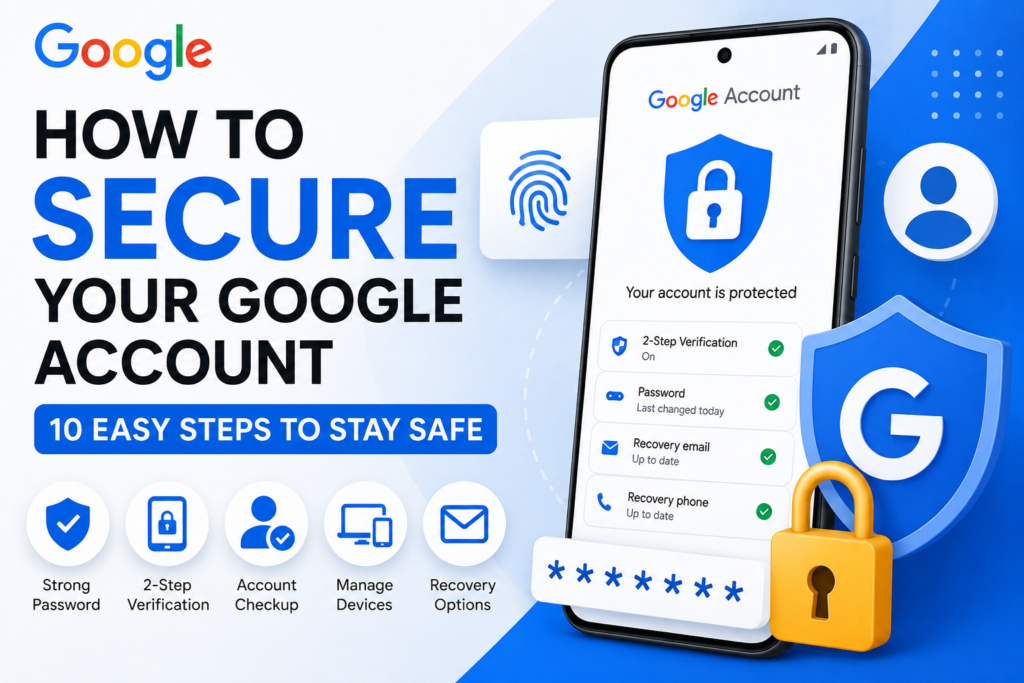
Your Google Account can contain years of emails, photos, documents, contacts, passwords and other personal information. This complete guide explains how to secure your account, check signed-in devices, enable 2-Step Verification, use passkeys, protect your recovery information, identify phishing attempts and respond if you notice suspicious activity.
Quick Answer: What Should You Do First?
If you want to improve your Google Account security right now, start with these five actions:
- Run Google’s Security Checkup.
- Review all devices and sessions signed into your account.
- Use a strong, unique password.
- Turn on 2-Step Verification or use a passkey where appropriate.
- Check your recovery phone number, recovery email and connected apps.
Seeing more than one session or device does not automatically mean your account has been hacked. Google can show multiple sessions for the same device, browser, app or service. Investigate unfamiliar activity before assuming the worst.
Why Your Google Account Needs Strong Security
Many people think of their Google Account as simply their Gmail account. In reality, a single Google Account can connect you to several Google services and personal information.
Depending on how you use Google, your account may contain emails, Google Drive files, Google Photos, YouTube information, contacts, saved passwords and other personal data.
That makes account security important even if you do not consider yourself a target for hackers.
Account security is not only about choosing a complicated password. Good security also means protecting your login methods, recovery information, devices, connected applications and everyday browsing habits.
Run Google Security Checkup
Google provides Security Checkup to help account holders review important security settings and recommendations.
This is a good first step because it can point you toward security settings that may need attention.
How to run Security Checkup
- Sign in to your Google Account.
- Open your Google Account settings.
- Go to the Security section.
- Look for Security Checkup or recommended security actions.
- Review each recommendation carefully.
Do not simply dismiss a security recommendation because your account is currently working normally. Review what Google is recommending and decide whether action is needed.
Check All Devices Signed Into Your Google Account
One of the most useful security checks is reviewing the devices and sessions associated with your Google Account.
How to check your devices
- Open your Google Account.
- Open the Security section.
- Find the Your devices section.
- Select Manage all devices.
- Review the devices and sessions shown there.
What should you look for?
- Phones you no longer own.
- Computers you do not recognize.
- Devices from locations that do not make sense.
- Old devices you forgot were still signed in.
- Sessions you are certain you did not create.
Multiple sessions can sometimes represent the same device, browser or service. First determine whether the activity can reasonably belong to you.
If you find an unknown device
- Open the device/session details.
- Check whether you recognize it.
- If you are certain it is not yours, sign it out.
- Change your password if unauthorized access is possible.
- Review your security activity.
- Check recovery information and connected applications.
Turn On 2-Step Verification
A password is only one layer of account security. 2-Step Verification adds another authentication step when Google determines that additional verification is required.
This can help protect your account if your password is stolen, guessed or exposed through a phishing attack.
How to enable 2-Step Verification
- Open your Google Account.
- Go to Security & sign-in.
- Find 2-Step Verification.
- Select the option to turn it on.
- Follow Google’s on-screen instructions.
Google explains that 2-Step Verification adds another layer of protection if your password is stolen. The exact verification challenge can vary depending on your account and security setup.
Use a Strong, Unique Google Account Password
Your Google Account password should not be reused on other websites.
Password reuse creates a chain reaction. If another website suffers a data breach and your reused password becomes known, attackers may try the same password on your Google Account.
A good password should be:
- Unique to your Google Account.
- Long enough to resist guessing.
- Difficult for other people to predict.
- Free from obvious personal information.
- Different from passwords used on other important accounts.
Avoid passwords based on:
- Your name.
- Your birthday.
- Your mobile number.
- Your business name.
- Simple patterns such as 123456.
- The same password you use everywhere else.
Use a reputable password manager to create and store unique passwords instead of trying to memorize the same password everywhere.
Consider Using a Passkey
Passkeys provide an alternative way to sign in without relying only on a traditional password.
Depending on your device, a passkey can use a fingerprint, face recognition or your device screen lock to verify that you have access to the device.
Google explains that passkeys are designed to provide strong protection against phishing because they are tied to the device or credential system used to create them.
When should you use a passkey?
- When your device supports passkeys.
- When you control and trust the device.
- When you want a convenient alternative to password-based sign-in.
Do not create account credentials on a shared or publicly accessible device unless you fully understand how the credential will be stored and managed.
Review Recent Security Activity
Your device list is only one part of account security. You should also pay attention to security-related activity.
Look for activity such as:
- Password changes you did not make.
- New sign-ins you do not recognize.
- Recovery information changes.
- New devices or sessions.
- Security settings you did not change.
If you are certain that a security event was not performed by you, treat it seriously and start securing your account immediately.
Secure Your Recovery Phone Number and Email
Recovery information can become extremely important if you lose access to your account or need to prove that you are the legitimate account owner.
Check these details
- Your recovery phone number belongs to you.
- Your recovery email is accessible.
- The recovery information is current.
- You recognize every recovery option shown.
An old phone number or inaccessible recovery email can make account recovery more difficult when you actually need it.
Review Third-Party Apps and Account Access
Over time, you may connect your Google Account to many websites, applications and services.
Some of these services may no longer be necessary.
What should you do?
- Open your Google Account security settings.
- Review third-party apps and services with account access.
- Identify applications you no longer use.
- Remove access where appropriate.
Pay particular attention to old services you connected years ago and no longer remember using.
If you no longer use a service and do not need its Google Account access, consider removing the access.
Protect Yourself From Fake Google Login Pages
Strong passwords and 2-Step Verification are important, but you should still learn how phishing works.
A phishing attack can use an email, message or website designed to look legitimate and convince you to enter your login details.
Be careful with messages claiming:
- “Your account will be deleted today.”
- “Your account has been hacked.”
- “Verify your account immediately.”
- “Your payment failed.”
- “You have won a prize.”
- “Click here to prevent account suspension.”
What should you do instead?
If you receive a suspicious message, avoid using its login link. Instead, open your browser yourself and navigate directly to the official Google Account website.
A professional-looking logo or email does not prove that a message is genuine. Check the actual destination and use official Google pages whenever possible.
Check Important Gmail Settings
If you suspect that someone accessed your Google Account, do not only change your password. Also check important Gmail settings for changes you did not make.
Things worth checking
- Mail forwarding settings.
- Filters you do not recognize.
- Unknown email addresses or delegates.
- Automatic replies you did not create.
- Unexpected changes to your account settings.
Attackers who gain access to an email account may attempt to create rules or forwarding arrangements that help them continue receiving information even after the victim notices something is wrong.
Remove or disable settings you did not create, then continue checking your account security and connected services.
What to Do If You Think Someone Has Accessed Your Google Account
If you discover a device, security event or account setting that you are certain you did not create, take action quickly.
Recommended response
- Sign out unfamiliar devices or sessions.
- Change your Google Account password.
- Enable 2-Step Verification.
- Review recovery phone and email information.
- Review recent security activity.
- Remove unfamiliar third-party access.
- Review important Gmail settings.
- Run Google Security Checkup again.
If you believe your password was exposed, replace it with a new unique password rather than slightly modifying the old one.
Common Google Account Security Mistakes to Avoid
| Mistake | Why It Is a Problem | Better Approach |
|---|---|---|
| Using one password everywhere | A breach on another website can expose the same password. | Use a unique password. |
| Ignoring security alerts | You may miss an unauthorized change. | Review unexpected alerts. |
| Keeping old devices signed in | Lost or sold devices may still have account access. | Review and sign out old devices when appropriate. |
| Clicking login links in suspicious messages | You may be sent to a fake login page. | Open the official website yourself. |
| Ignoring recovery information | Outdated recovery details can complicate recovery. | Keep recovery information current. |
| Leaving unused apps connected | Old services may retain unnecessary account access. | Review and remove unnecessary access. |
How Often Should You Check Your Google Account Security?
You do not need to check your security settings every day. A periodic review is more practical for most people.
You should also review your account after an event that could affect security.
Check your security after:
- Losing your phone or computer.
- Selling or giving away an old device.
- Using your account on a shared computer.
- Installing an unfamiliar application.
- Receiving a suspicious sign-in notification.
- Learning that a password you reused was exposed.
- Connecting your Google Account to a new service.
Google Account Security Checklist
Use the checklist below to review your account. Your progress is saved locally in your browser, so refreshing the page will not immediately remove your checked items.
Frequently Asked Questions About Google Account Security
Yes. Your Google Account credentials can provide access to multiple Google services. This is why using a unique password and adding stronger authentication is important.
Open your Google Account, go to the Security section, find Your devices and select Manage all devices. Review the devices and sessions listed there.
First determine whether the device could belong to you. If you are certain that it does not, sign it out. Then review security activity, change your password if necessary, enable stronger authentication and check recovery information and connected applications.
Yes. 2-Step Verification adds an additional layer of authentication and can help protect your account if someone obtains your password.
Passkeys are designed to provide a strong alternative to password-based sign-in and can help protect against phishing. They use supported device or credential authentication rather than asking you to type a traditional password every time.
There is no single sign that proves an account has been hacked. Look for unfamiliar devices, security activity, password changes, recovery information changes or account settings you did not make.
Changing a password simply because a certain number of days has passed is not the main goal. Use a strong, unique password and change it promptly if you believe it has been exposed, reused after a breach, or accessed by someone else.
If you entered your password on a suspicious website, change your Google Account password from the official Google Account website as soon as possible. Then review devices, security activity, recovery information and connected apps. Enable stronger authentication if it is not already enabled.
You can review your signed-in devices and sign out devices or sessions that you no longer trust or use. Be careful not to sign out a device you are currently using unless you understand the effect.
Review them regularly. If you no longer use an app or service and it does not need access to your Google Account, removing its access can reduce unnecessary account permissions.
A strong password helps, but it does not make you immune to phishing. Attackers can try to trick people into entering their credentials on fake websites. Strong authentication methods and careful checking of login pages provide additional protection.
There is no need to obsessively check the account every day. Review security settings periodically and whenever you experience an event that could affect account security, such as losing a device or receiving a suspicious login alert.
Google does not publish a fixed minimum number of blog posts that guarantees AdSense approval. The important goal is to build a useful, original, well-structured website that provides genuine value to visitors.
There is no reason to assume that simply generating an article with AI makes it valuable. Content should be accurate, useful, original and genuinely helpful to the reader. Automatically produced generic content can fail to provide the value users need.
Final Thoughts
Securing your Google Account does not require you to become a cybersecurity expert.
Start with the basics: review your signed-in devices, use a unique password, enable 2-Step Verification, keep recovery information updated, review connected applications and learn how to recognize phishing attempts.
The most important thing is consistency. Account security should be treated as an ongoing habit rather than something you think about only after an account problem occurs.
Check → Protect → Remove → Recover → Review.
Check your account, protect your login, remove unnecessary access, keep recovery options ready and review your security settings periodically.
Official Google Resources
For the latest account-security instructions, always refer to Google’s official help pages because account menus and available authentication methods can change over time.
- Google Account Security Checkup
- Google Account Help — 2-Step Verification
- Google Account Help — Passkeys
- Google Account Help — Account recovery
- Google Account Help — Security and suspicious activity