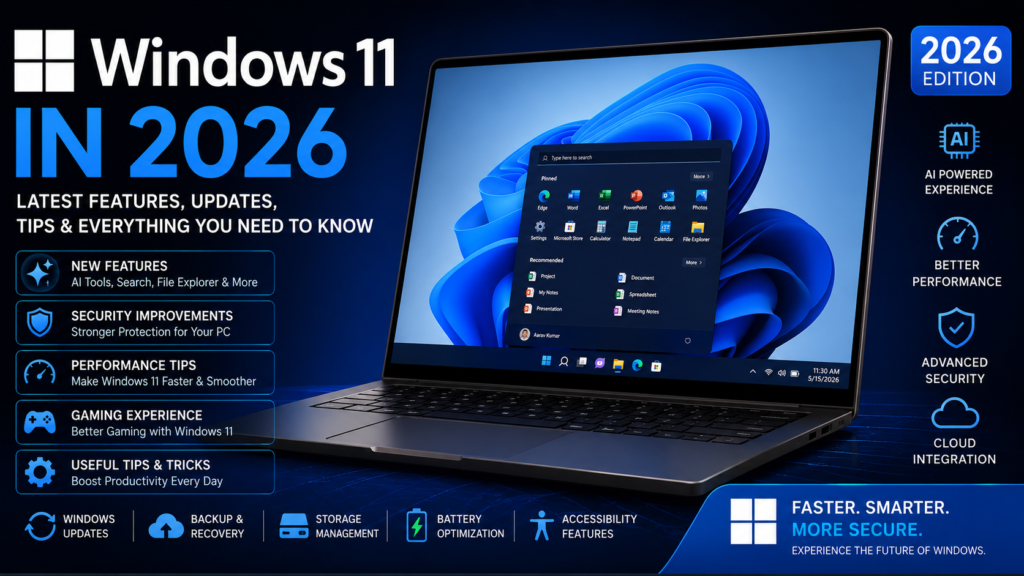
Windows 11 in 2026: Latest Features, Updates, Performance Tips & Everything You Need to Know
Windows 11 continues to evolve in 2026 with new features, security improvements, AI-powered tools, performance updates, and a smoother overall experience.
Whether you are using Windows 11 for work, gaming, studying, content creation, or everyday browsing, keeping your PC updated can improve security, compatibility, and performance.
In this guide, we will explain the latest Windows 11 versions, new features, important updates, performance tips, security settings, and useful Windows tricks that every PC user should know.
What Is the Latest Version of Windows 11?
Windows 11 follows an annual feature-update cycle, along with regular monthly security and quality updates.
As of 2026, Windows 11 version 25H2 is one of the main versions supported for existing PCs. Microsoft also lists Windows 11 version 26H1, but 26H1 is designed for new devices launching in early 2026 rather than as a normal in-place upgrade for existing 24H2 or 25H2 computers.
For most existing Windows 11 users, keeping the system updated through Windows Update is the safest way to receive the latest improvements.
Windows 11 25H2: What’s New?
Windows 11 25H2 brings together features and improvements introduced through Windows 11’s ongoing update process.
Some notable changes include:
- Improved Windows Search
- AI-powered actions in File Explorer
- Click to Do on supported Copilot+ PCs
- Agent capabilities in Settings on supported Copilot+ PCs
- Security and reliability improvements
- Wi-Fi 7 enterprise connectivity
- Better management of preinstalled applications
Microsoft says several features that were previously controlled through temporary enterprise feature controls are enabled by default in Windows 11 25H2.
Windows 11 AI Features
AI is becoming a bigger part of Windows 11, especially on newer Copilot+ PCs.
Depending on the device and hardware, users can get access to AI-powered features designed to make searching, working with files, changing settings, and completing everyday tasks easier.
However, not every AI feature is available on every Windows 11 computer.
Many newer AI features depend on specific hardware, particularly PCs equipped with an NPU.
This means two Windows 11 computers can have the same operating system version but still have different AI capabilities.
AI Actions in File Explorer
One of the interesting developments in newer Windows 11 versions is the integration of AI actions with File Explorer.
Supported devices can use AI-powered capabilities to work with files more intelligently.
This can make everyday tasks easier, especially for people who regularly work with documents, images, and other files.
The availability of these features depends on the Windows version, device hardware, account configuration, and Microsoft’s rollout process.
Improved Windows Search
Windows Search continues to receive improvements in newer Windows 11 updates.
Search is an important part of Windows because users rely on it to quickly find applications, files, settings, and information.
On supported Copilot+ PCs, Microsoft has also been developing improved search capabilities designed to make finding content more natural and useful.
Some newer features may be rolled out gradually, so they may not appear on every PC at the same time.
How to Check Your Windows 11 Version
Want to know which version of Windows 11 your PC is running?
You can check it in just a few seconds.
Press:
Windows Key + R
Then type:
winver
Press Enter.
A window will appear showing your Windows version and OS build.
You can also open:
Settings → System → About
There you can see information about your Windows edition, processor, RAM, system type, and Windows specifications.
How to Check for Windows 11 Updates
Keeping Windows updated is one of the easiest ways to improve security and stability.
To check for updates:
- Open Settings.
- Select Windows Update.
- Click Check for updates.
- Download and install available updates.
- Restart your computer if Windows asks you to.
Microsoft releases regular monthly updates containing security fixes and other improvements.
How to Make Windows 11 Faster
If your Windows 11 PC has started feeling slow, you don’t necessarily need to buy a new computer.
Try these simple steps.
1. Restart Your PC
A simple restart can clear temporary system problems and background processes.
If your computer has been running for several days without restarting, a restart can sometimes make a noticeable difference.
2. Remove Unused Apps
Installed applications can consume storage and sometimes run background processes.
Go to:
Settings → Apps → Installed apps
Remove applications you no longer use.
3. Disable Unnecessary Startup Apps
Too many applications launching when Windows starts can increase boot time.
Open:
Settings → Apps → Startup
Turn off startup permissions for apps that you don’t need immediately after signing in.
4. Free Up Storage
Low storage can make managing files and applications more difficult.
Windows includes built-in storage management tools that can help remove temporary files and unnecessary data.
Open:
Settings → System → Storage
Review temporary files and other storage categories before deleting anything important.
5. Keep Drivers Updated
Graphics, network, audio, chipset, and other hardware drivers can affect performance and compatibility.
For important hardware, use updates provided by your PC manufacturer or hardware manufacturer.
Windows 11 Gaming Tips
Windows 11 is also widely used for PC gaming.
For a smoother gaming experience:
- Keep Windows updated
- Keep graphics drivers updated
- Close unnecessary background applications
- Keep enough free storage
- Use Game Mode when appropriate
- Check graphics settings for demanding games
- Avoid running unnecessary overlays
- Keep your PC properly cooled
For gaming laptops, performance can also depend heavily on power mode and whether the laptop is connected to its charger.
Windows 11 Security Features
Security is one of the biggest reasons to keep Windows updated.
Windows Security provides several built-in protections against malware, unsafe applications, phishing attempts, and other threats.
Windows 11 includes features such as Microsoft Defender, SmartScreen, reputation-based protection, and other security controls.
Microsoft’s App & Browser Control settings can help protect users from unsafe apps, files, websites, and downloads.
Why You Should Not Ignore Windows Updates
Many users delay Windows updates because they are worried about changes or interruptions.
However, regularly installing important updates helps protect your computer from known security vulnerabilities and can also improve reliability.
Windows 11 uses cumulative monthly updates, meaning newer updates include previous fixes as well.
If an update is available, it is generally better to install it rather than leaving your PC unpatched for a long period.
Windows 11 24H2 vs 25H2
Windows 11 24H2 and 25H2 share a common core operating system.
For compatible 24H2 devices, the 25H2 feature update can use an enablement package that activates features already present in the system files.
This makes the upgrade relatively lightweight compared with a completely new operating-system installation.
If your computer is currently running 24H2, check Windows Update to see whether 25H2 is offered for your device.
What Is Windows 11 26H1?
Windows 11 26H1 can sound confusing because of its name.
Microsoft states that Windows 11 26H1 is intended for new devices coming to market in early 2026.
It is not designed as a normal feature update for existing PCs running Windows 11 24H2 or 25H2.
So if you are using an existing Windows 11 computer, you should not assume that you need to manually install 26H1.
Windows 11 Tips Every User Should Know
Here are some useful Windows shortcuts and features that can save time.
Windows + I
Open Windows Settings.
Windows + E
Open File Explorer.
Windows + Shift + S
Take a selected-area screenshot.
Windows + V
Open clipboard history if it is enabled.
Windows + Z
Open Snap Layouts on supported Windows 11 configurations.
Windows + Tab
Open Task View and manage virtual desktops.
Windows + L
Lock your computer instantly.
Learning these shortcuts can make everyday Windows use much faster.
How to Keep Your Windows 11 PC Healthy
A few simple habits can keep your PC running better for longer.
Keep Windows updated, remove applications you no longer use, maintain enough free storage, keep important drivers updated, use reliable security protection, and avoid downloading unknown programs from suspicious websites.
You should also back up important personal files.
No operating system is completely immune to hardware failure, accidental deletion, malware, or other unexpected problems.
Is Windows 11 Still Worth Using in 2026?
Yes.
Windows 11 remains Microsoft’s current mainstream desktop operating system and continues to receive feature updates, security updates, and improvements.
The operating system is becoming increasingly focused on AI, security, productivity, gaming, and better integration between hardware and software.
However, the exact features available to you depend on your Windows version, PC hardware, edition, and Microsoft’s rollout schedule.
Final Thoughts
Windows 11 in 2026 is much more than a redesigned version of Windows.
Microsoft continues to add new features, improve security, introduce AI capabilities, and refine the overall desktop experience.
For most users, the best approach is simple: keep Windows updated, maintain enough free storage, remove unnecessary applications, keep important drivers current, and use Windows’ built-in security features.
If you are using an existing Windows 11 PC, check your current version first. From there, Windows Update can tell you which updates are available for your device.
Windows is continuing to evolve, and keeping your PC updated is one of the easiest ways to get the latest features while keeping your system secure.