
If you have been using Google Drive for desktop to automatically back up photos from your computer to Google Photos, there is an important change you should know about.
Google Drive for desktop has ended support for Google Photos backup from August 10, 2026.
At first, that sounds like a bigger problem than it actually is.
Your existing photos are not suddenly being deleted. Photos and videos that were already backed up to Google Photos will remain there.
The real change is what happens to the new photos you add to your computer from now on.
If your computer was relying on Google Drive for desktop to send those photos to Google Photos automatically, that workflow has now changed.
So, what exactly happened? And more importantly, how can you keep your computer folders backed up to Google Photos?
Let’s break it down.
What happened to Google Drive and Google Photos?
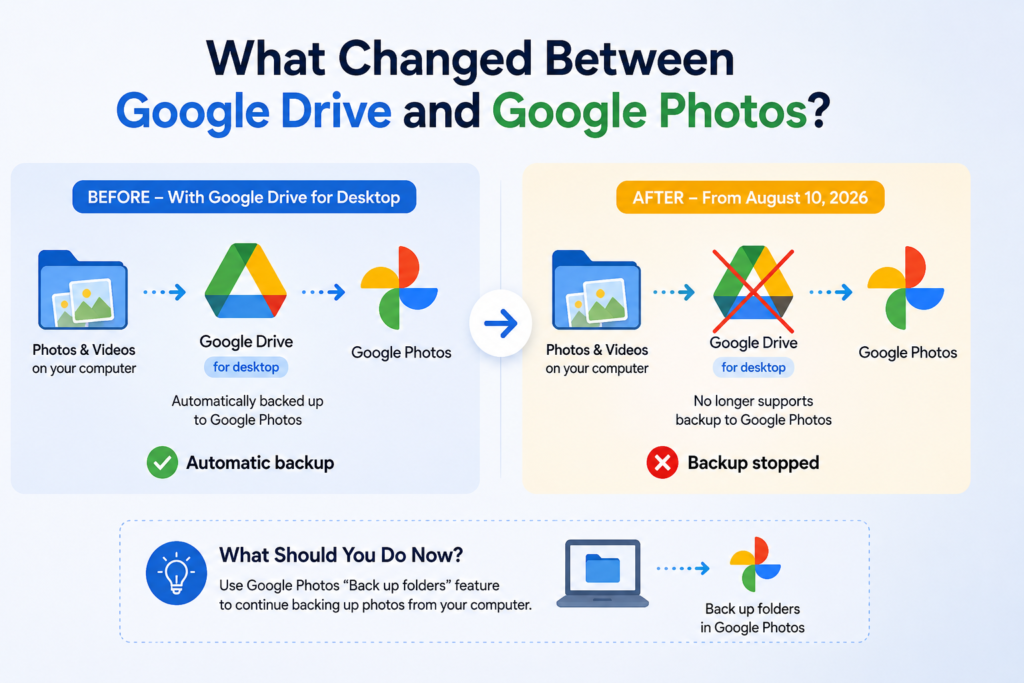
For years, Google Drive for desktop allowed users to select folders on their computers and enable the “Back up to Google Photos” option.
For example, you might have had a folder like:
Pictures → Family Photos
or:
D:\Camera Photos
Once that folder was configured, photos and videos inside it could be backed up to Google Photos.
Google has now moved this workflow away from Drive for desktop.
According to Google’s current documentation, Google Drive for desktop ended support for Google Photos backup on August 10, 2026.
Google had already started notifying users about the transition earlier in 2026. From June 15, users could no longer configure new Google Photos backup folders through the Drive for desktop interface, while existing configurations continued until the August 10 deadline.
Are Your Existing Google Photos Being Deleted?
No.
This is probably the first thing most people will want to know.
If your photos were already backed up to Google Photos, they will remain in your Google Photos library.
Ending the Google Drive for desktop backup feature does not mean Google is deleting the photos that were previously uploaded.
Google specifically says that when a folder backup is stopped, it only prevents future uploads. Existing photos remain in Google Photos unless you manually delete them.
So if you have thousands of photos already sitting safely in Google Photos, you don’t need to panic.
The thing you need to check is your future backup setup.
What Happens to New Photos on Your Computer?
This is where the change actually matters.
Imagine you have 10,000 photos already backed up to Google Photos.
Tomorrow, you copy another 200 photos from your phone, camera, or SD card into a folder on your computer.
Previously, Google Drive for desktop could have handled the Google Photos backup if that folder was configured for it.
That particular Drive-based workflow is no longer supported.
So those new photos should not be assumed to be backed up to Google Photos automatically just because they are inside the same old folder.
If you want computer folders to continue backing up to Google Photos, Google now provides a Back up folders option through Google Photos.
How to Back Up Computer Folders to Google Photos
The good news is that you don’t have to stop backing up your computer photos.
Google provides a new way to do it through Google Photos.
Here’s how:
Step 1: Open Google Photos
On your computer, open:
photos.google.com
Sign in with the Google Account where you want your photos to be stored.
Step 2: Open the Add Photos Menu
At the top-right, click Create and then choose Add photos.
Google’s current instructions provide a Back up folders option from this area.
Step 3: Select Back Up Folders
Choose:
Back up folders
You can then select the folder on your computer that contains the photos and videos you want to back up.
Step 4: Allow Permission
Google Photos will need permission to access the selected folder.
Allow the required permissions so Google Photos can read and back up the files.
Step 5: Keep the Backup Running
There is one detail here that you should not overlook.
Google says that for folder backup through Google Photos, you should keep the Google Photos tab open in your browser or have the Photos Web App running for background backup to continue.
If you close the browser tab, the selected folders won’t automatically continue backing up.
That is an important difference from the old Drive for desktop workflow.
Will Google Photos Upload the Same Photos Again?
Generally, no.
Google says that when you add a folder for backup, Google Photos will try to upload its contents, but items that have already been backed up won’t simply be uploaded again.
This means you don’t need to manually move thousands of existing photos into another folder just because the backup method has changed.
However, it’s still a good idea to check your Google Photos library after changing your backup setup.
Does This Affect Google Photos on Android and iPhone?
Not in the way many people might assume.
This particular change is about Google Drive for desktop and computer-folder backup to Google Photos.
Google Photos still supports backing up photos and videos from mobile devices.
On Android, for example, Google Photos can back up your camera and selected device folders when Backup is enabled.
So if you normally take photos on your phone and Google Photos is already backing them up, this Drive for desktop change does not mean your phone backup has suddenly stopped.
What About Google Drive?
Google Drive itself is not shutting down.
You can still use Google Drive to store and manage files.
The change is specifically about the Google Photos backup feature inside Google Drive for desktop.
That’s an important distinction.
So don’t uninstall Google Drive just because you saw headlines saying Google Drive is “ending” something.
The Google Drive service continues to exist.
How to Check If a Photo Is Actually Backed Up
This is something I would recommend doing before assuming everything is working.
Open Google Photos on your computer and select a photo or video.
Google Photos can show the backup status and file information for an item.
You can also check the overall backup status at the top of your Google Photos library.
Google provides statuses such as:
- Backup complete
- Backing up
- Preparing backup
- Backup paused
- No backup
If you recently changed your setup, don’t just assume the backup worked.
Upload one or two new photos and check them yourself.
That takes less than a minute and can save you from discovering months later that your folder wasn’t actually being backed up.
What If You Don’t Change Anything?
If you don’t use Google Drive for desktop to back up computer folders to Google Photos, you may not need to do anything.
For example, if you only use Google Photos on your smartphone, this particular desktop change isn’t something you need to worry about.
But if your workflow looks like this:
Camera → Computer → Folder → Google Drive for desktop → Google Photos
then you should update your backup setup.
One More Thing: Google Account Storage
There is another detail worth remembering.
Google Account storage is shared across Google Photos, Google Drive, and Gmail.
So if your Google Account is already close to its storage limit, your photo backup may eventually stop when there isn’t enough available space.
Before assuming your new backup system is working perfectly, check that your Google Account has enough storage.
This is especially important if you regularly upload large videos.
Should You Keep Another Backup?
If your photos are genuinely important, I’d recommend having more than one copy.
Google Photos is useful as a cloud backup, but important family photos, business files, camera footage, and personal memories shouldn’t ideally exist in only one place.
A simple setup could be:
Computer → Google Photos
plus
Computer → External SSD/HDD
That way, if something goes wrong with your computer or cloud account, you still have another copy.
What Should You Do Today?
If you were using Google Drive for desktop to back up photos to Google Photos, here’s the simplest checklist:
1. Open Google Photos.
2. Check that your older photos are still there.
3. Go to the computer folder where your new photos are stored.
4. Set up Google Photos’ “Back up folders” option.
5. Add the folder you actually want to protect.
6. Upload a test photo.
7. Confirm that the photo appears in Google Photos.
That’s it.
You don’t need to panic, delete your existing photos, or uninstall Google Drive.
The important thing is simply to make sure your new photos have a working backup method.
Frequently Asked Questions
Is Google Drive shutting down?
No. Google Drive is not shutting down. The change is specifically the end of Google Photos backup support in Google Drive for desktop
Did Google delete my existing photos?
No. Photos that were already backed up to Google Photos remain there unless you delete them yourself.
Can I still back up photos from my computer to Google Photos?
Yes. Google provides a Back up folders option through Google Photos for computer folders.
When did Google Drive for desktop stop Google Photos backup?
Google Drive for desktop ended support for Google Photos backup on August 10, 2026.
Do I need to uninstall Google Drive?
No. There is no need to uninstall Google Drive simply because Google Photos backup support has ended.
Will my phone’s Google Photos backup stop?
No. The change concerns Google Drive for desktop’s Google Photos backup feature. Google Photos continues to support mobile backup.
Will Google Photos upload my existing photos again?
Google says that content already backed up won’t be reuploaded simply because you add the folder to the new backup system.
Is Google Photos backup free?
Google provides storage with your Google Account, but that storage is shared across services such as Google Photos, Drive, and Gmail. If you use all available storage, you’ll need to free up space or purchase additional storage.
Final Verdict
The headline “Google Drive ends Google Photos backup” sounds scary, but the actual change is much simpler.
Your existing Google Photos library is not being wiped.
What has changed is the way you back up new photos and videos from your computer.
If you were using Google Drive for desktop for this purpose, move your backup setup to Google Photos’ Back up folders feature and verify it with a test photo.
And honestly, don’t wait until you have hundreds of new photos sitting on your computer.
Check your backup today.
